---
title: "Introduction & SDK Setup"
description: "Everything you need to know to get started with the Bookingbird JavaScript SDK - from installation to your first working widget."
url: https://help.bookingbird.io/en/articles/62-introduction-and-sdk-setup
collection: "Bookingbird JavaScript SDK"
updated: 2026-07-03
language: en
alternates: [de]
---
# Introduction & SDK Setup
Everything you need to know to get started with the Bookingbird JavaScript SDK - from installation to your first working widget.
#### 🚀 What is the Bookingbird SDK?
The Bookingbird SDK allows you to embed a fully-functional booking experience directly into your website.
It’s lightweight, dependency-free, and works across all modern browsers (Chrome 60+, Firefox 55+, Safari 12+, Edge 79+).
You can use it to:
- Display a floating “Book now” button.
- Embed booking pages, services, or resources.
- Control the booking widget programmatically.
#### 🔧 Installation Options
There are two easy ways to load the SDK on your site.
##### **Option 1 — Recommended (Proxy Script)**
This method ensures the SDK loads asynchronously and doesn’t block your page.
```javascript
```
##### **Option 2 — Direct Include**
```javascript
```
#### ⚙ Configuration Options
```javascript
Bookingbird.initialize({
clientId: "your-client-id",
apiBaseUrl: "https://api.bookingbird.io",
locale: "en",
options: {
widget: {
width: 420,
height: 600,
borderRadius: 16,
closeOnEsc: true,
closeOnBackdrop: true
},
button: {
visible: true,
text: "Book now",
position: "bottom-right",
themeColor: "#6a7cff",
textColor: "#fff"
}
}
});
```
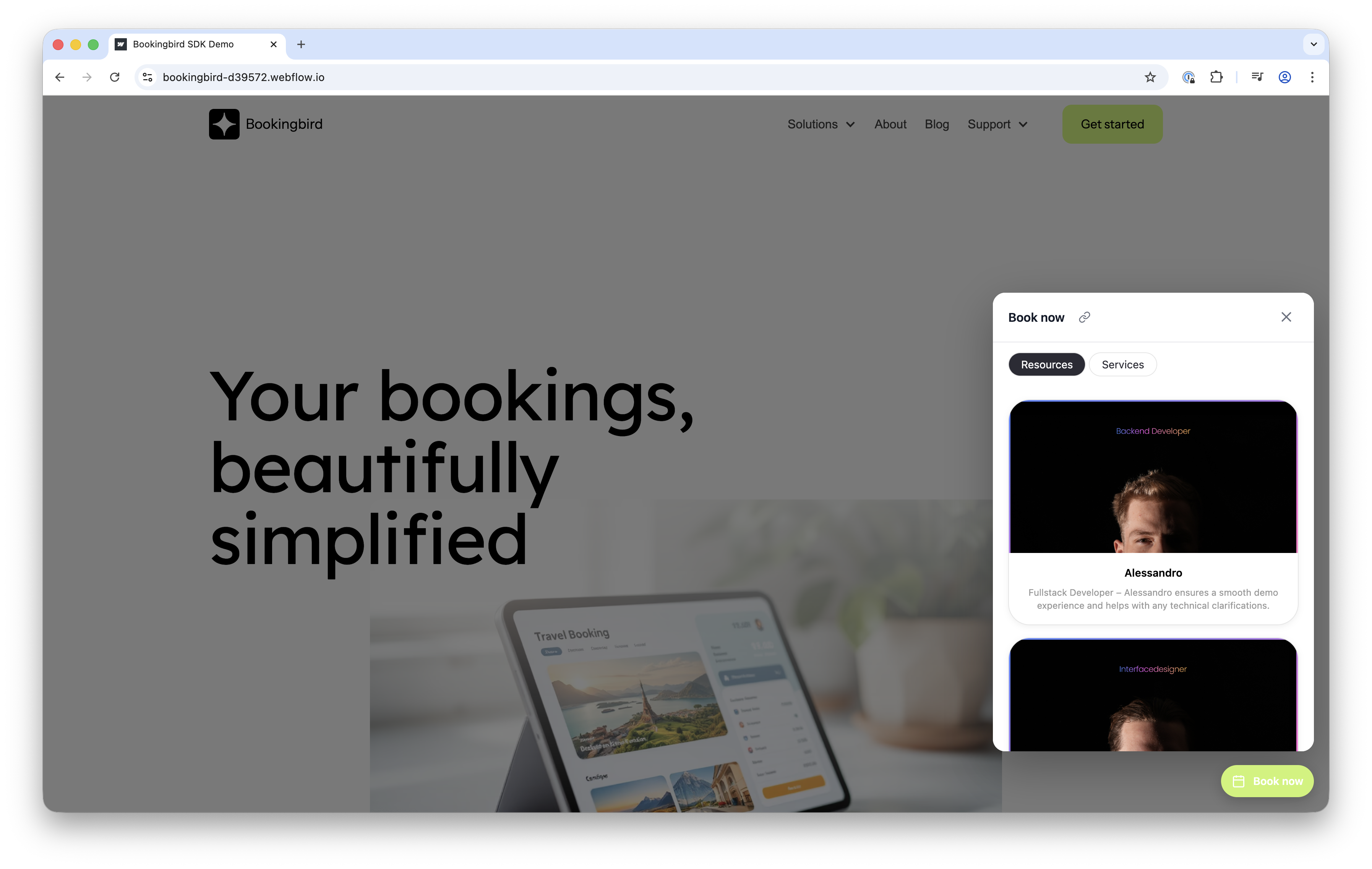
#### 🧪 Verifying Your Setup
After saving and publishing, open your website - a floating Bookingbird button should appear.
Clicking it will open the booking widget connected to your client ID.
If nothing appears:
- Check your **client ID**.
- Verify that the SDK URL (`https://cdn.bookingbird.io/latest/index.js`) loads correctly in your browser.
- Open the browser console and look for `Bookingbird` logs.