---
title: "Embedding Bookingbird in Webflow"
description: "Learn how to globally add the Bookingbird SDK in Webflow and use it to display the booking button or embed components like pages and services directly into your site."
url: https://help.bookingbird.io/en/articles/64-embedding-bookingbird-in-webflow
collection: "Bookingbird JavaScript SDK"
updated: 2026-03-06
language: en
alternates: [de]
---
# Embedding Bookingbird in Webflow
Learn how to globally add the Bookingbird SDK in Webflow and use it to display the booking button or embed components like pages and services directly into your site.
#### 💡 Overview
The Bookingbird JavaScript SDK allows you to seamlessly integrate the Bookingbird booking experience into your Webflow website.
It can display a floating “Book now” button or embed booking components (like pages, services, or resources) directly within your layout.
Because of how Webflow handles scripts, the Bookingbird SDK must be added **globally** in your project’s Head Code - this ensures the SDK is loaded on every page.
## 🌍 Step 1: Add the Bookingbird SDK Globally
1. Open your Webflow project.
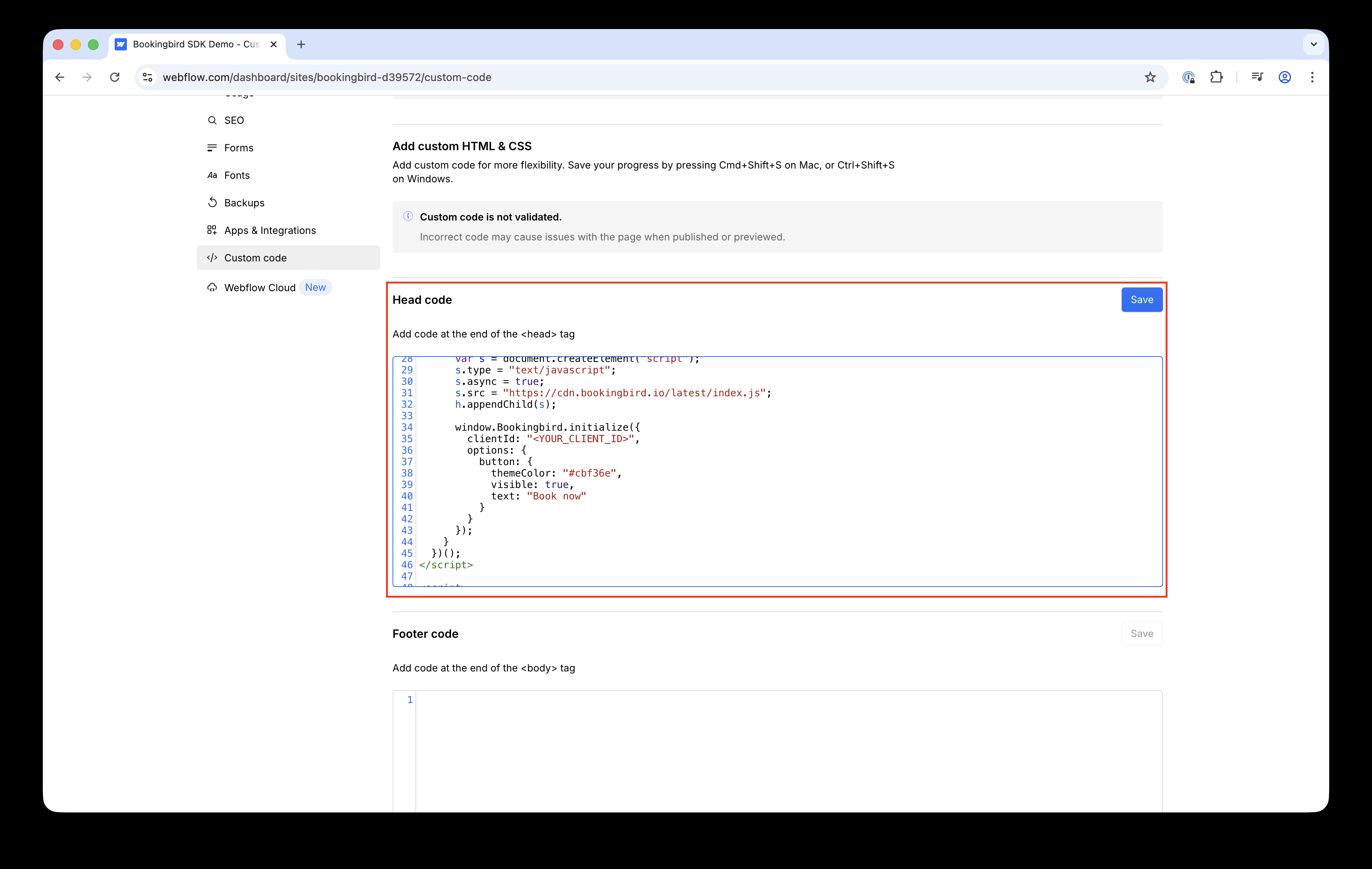
2. Go to **Project Settings → Custom Code → Head Code**.
3. Paste the following code snippet:
```javascript
```
4. Click **Save Changes** and **Publish** your site.
After publishing, the Bookingbird SDK will automatically load on every page.
If the `button.visible` option is set to `true`, a floating “Book now” button will appear (by default in the bottom-right corner).
## ⚙ Step 2: Customizing the Integration
You can customize how Bookingbird appears globally by adjusting the options in the script.
Example:
```javascript
window.Bookingbird.initialize({
clientId: "your-client-id",
options: {
button: {
visible: true,
text: "Reserve now",
position: "bottom-left",
themeColor: "#FF3366"
},
widget: {
width: 420,
height: 600,
borderRadius: 16
}
}
});
```
## 🔘 Step 3: Triggering the Widget Manually (Optional)
If you don’t want the floating button, you can hide it and trigger the booking widget from a custom Webflow button instead.
```javascript
```
Give your Webflow button the ID `book-now-btn`, and the widget will open when the button is clicked.
## 🧱 Step 4: Embedding Bookingbird Components
Once the SDK is added globally, you can also embed any Bookingbird component directly in your Webflow pages.
1. Add an **Embed** element to your Webflow page.
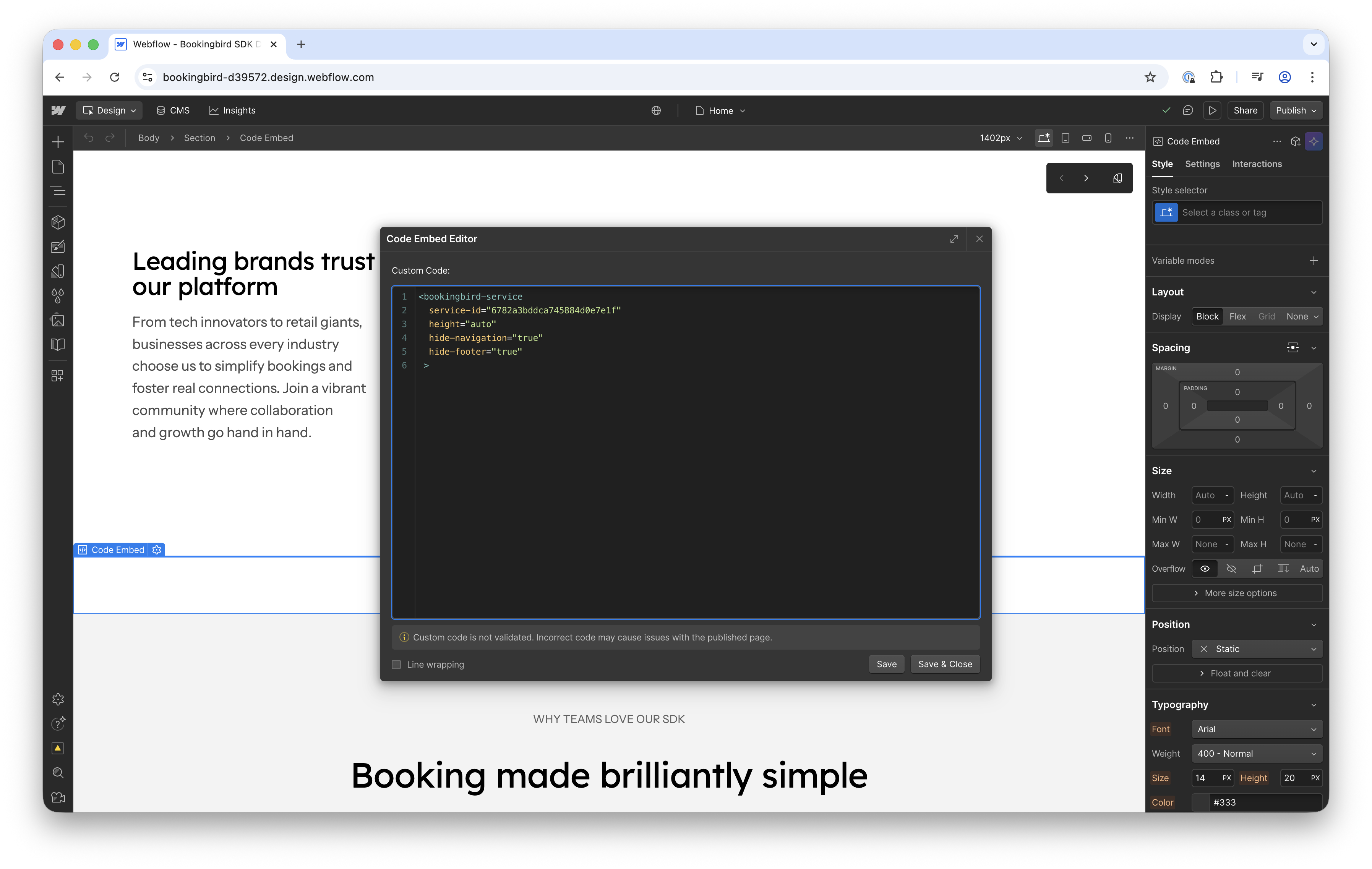
1. Paste one of the examples below:
**Booking Page:**
```javascript
```
**Service:**
```javascript
```
**Resource:**
```javascript
```
3. Adjust the height of the Embed element in the Webflow Designer (e.g. `600px`).
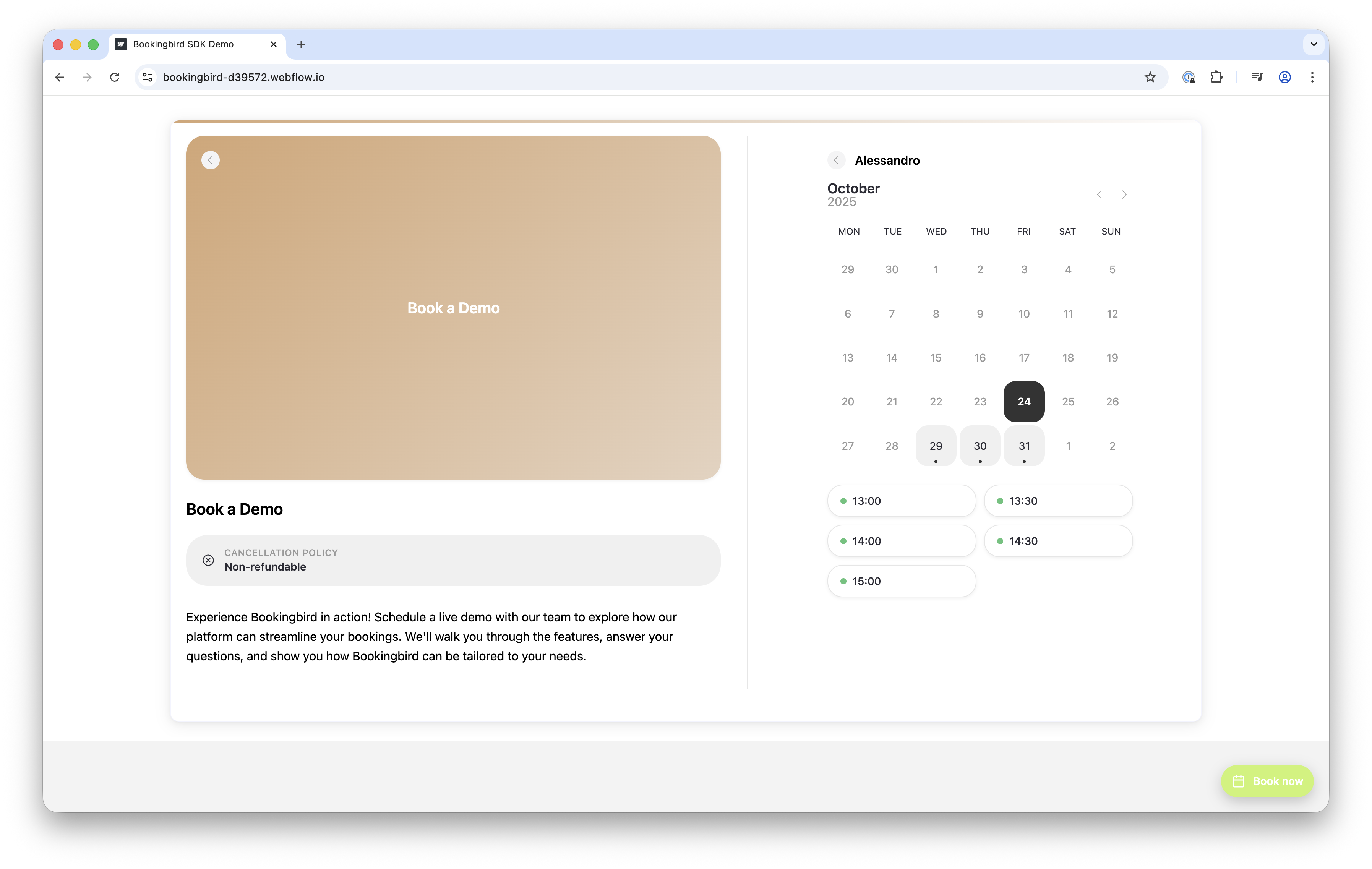
4. Publish your site to see the embedded booking view live.
### ⚙ Common Attributes
Attribute
Description
hide-navigation
Hides the navigation bar
hide-footer
Hides the footer section
width / height
Sets the component size (default: 100% / 600px)
height="auto"
Automatically resizes the frame based on content
For auto-height, the embedded frame sends a resize message:
```javascript
window.parent.postMessage({ type: 'bookingbird-resize', height: 800 }, '*');
```
### 🧰 Troubleshooting
- Double-check that your `clientId` is correct.
- Ensure that your published site uses **https://** — Bookingbird requires a secure connection.
- If components don’t appear, verify that the global script is properly added in **Project Settings → Custom Code → Head Code**.
- You can open your browser console and type `Bookingbird` to confirm that the SDK is loaded.