---
title: "Embedding Bookingbird in Wix"
description: "Learn how to add the Bookingbird SDK globally or on a specific page in Wix and use it to display a booking button or embed booking pages and services directly into your website."
url: https://help.bookingbird.io/en/articles/65-embedding-bookingbird-in-wix
collection: "Bookingbird JavaScript SDK"
updated: 2026-07-03
language: en
alternates: [de]
---
# Embedding Bookingbird in Wix
Learn how to add the Bookingbird SDK globally or on a specific page in Wix and use it to display a booking button or embed booking pages and services directly into your website.
#### 💡 Overview
The Bookingbird JavaScript SDK allows you to integrate your full booking experience directly into your Wix website.
You can display a floating “Book now” button or embed booking pages, services, or resources anywhere on your site.
Because of how Wix handles scripts, the Bookingbird SDK should typically be added **globally** (so it’s loaded on every page).
However, if you only want Bookingbird to appear on **one specific page**, you can also add the script there instead — see the note at the end of this article.
## 🌍 Step 1: Add the Bookingbird SDK Globally
#### 📋 Setup via Wix Dashboard
1. Log in to your **Wix Dashboard** and open your site.
2. Go to **Settings → Development & Integrations → Custom Code**.
3. Click **\+ Add Custom Code**.
4. Paste the following snippet:
```javascript
```
5. Set **Add Code to Pages** → **All pages**.
6. Choose **Place Code in** → **Head**.
7. Click **Apply** and **Publish** your site.
Once published, the Bookingbird SDK will automatically load on all pages.
If `button.visible` is set to `true`, a floating “Book now” button will appear by default in the bottom-right corner.
## ⚙ Step 2: Customize the Global Setup
You can modify how Bookingbird looks and behaves by updating the initialization options:
```javascript
window.Bookingbird.initialize({
clientId: "your-client-id",
options: {
button: {
visible: true,
text: "Reserve now",
position: "bottom-left",
themeColor: "#FF3366"
},
widget: {
width: 420,
height: 600,
borderRadius: 16
}
}
});
```
To hide the global button and only open the widget manually, set `button.visible` to `false`.
## 🔘 Step 3: Open the Widget from a Custom Wix Button (Optional)
If you’d like to trigger the Bookingbird widget from your own button instead of showing the floating button:
1. In the Wix Editor, select your button.
2. Enable **Dev Mode (Velo)**.
3. Give the button an **ID**, e.g. `book-now-btn`.
4. Add the following code to your page’s **Code Panel**:
```javascript
$w.onReady(function () {
$w('#book-now-btn').onClick(() => {
if (window.Bookingbird) {
window.Bookingbird.open();
}
});
});
```
Now, when a visitor clicks your button, the Bookingbird widget opens.
## 🧱 Step 4: Embedding Bookingbird Components
Once the SDK is added (globally or per page), you can embed Bookingbird components directly into your Wix pages.
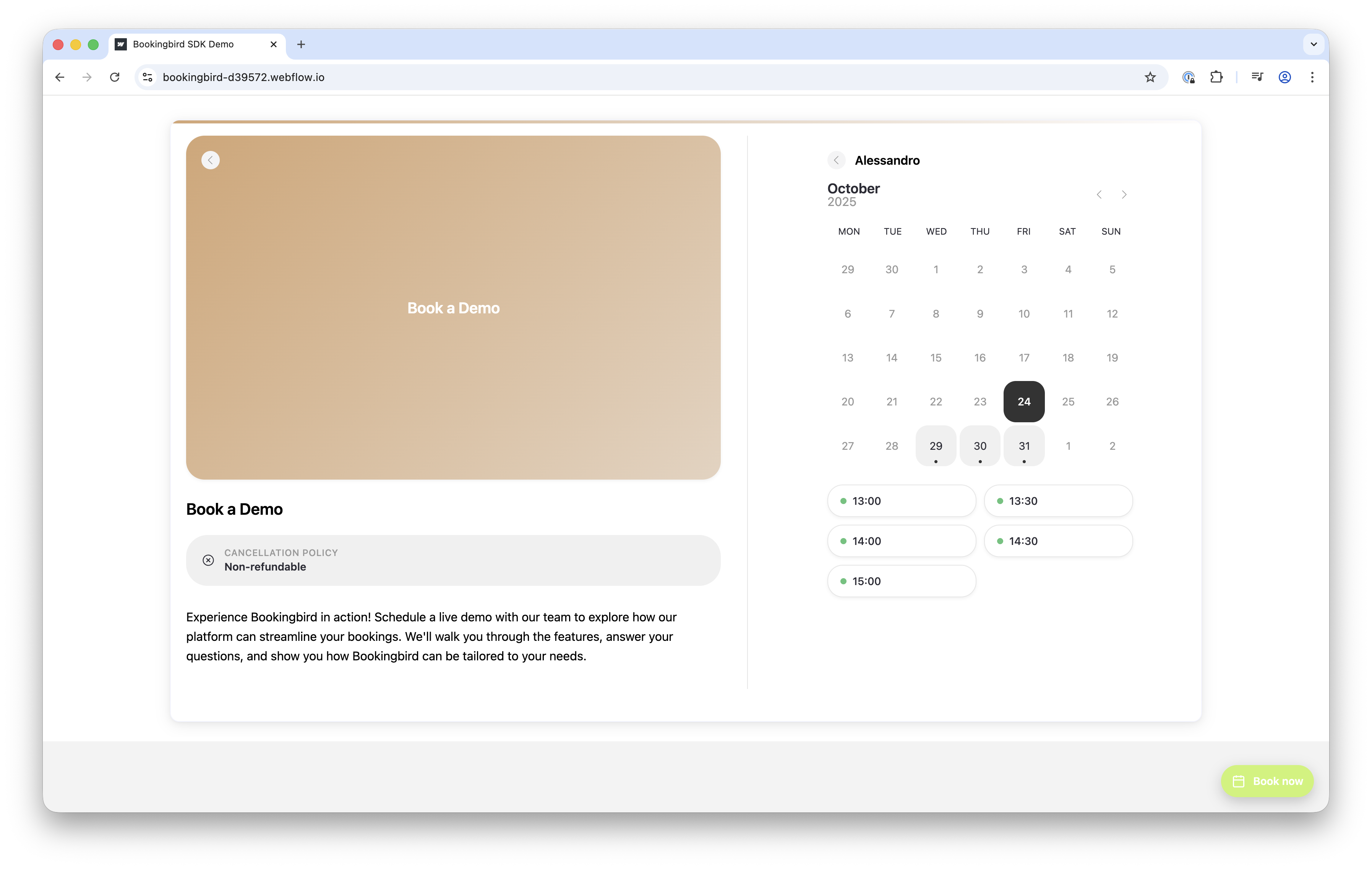
#### Example Components
**Booking Page:**
```javascript
```
**Service:**
```javascript
```
**Resource:**
```javascript
```
#### Add to Wix:
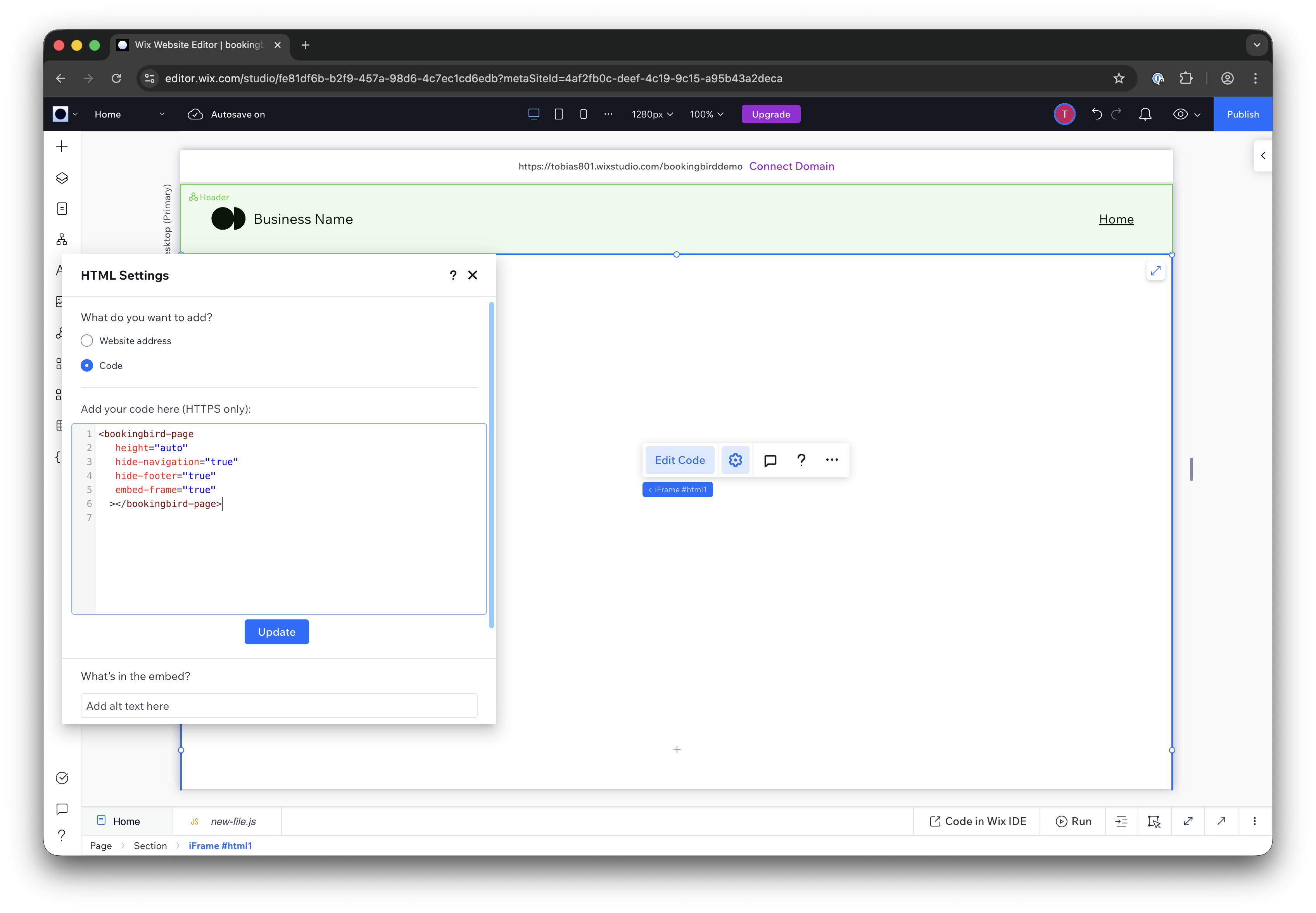
1. In the Wix Editor, go to the page where you want the booking element.
2. Click **Add → Embed & Social → Embed Code**.
3. Paste the desired Bookingbird component code.
4. Adjust the height (e.g., `600px`).
5. Publish your site.
### ⚙ Common Attributes
Attribute
Description
hide-navigation
Hides the navigation bar
hide-footer
Hides the footer section
width / height
Sets the component size (default: 100% / 600px)
height="auto"
Automatically resizes the frame based on content
If you use `height="auto"`, Bookingbird will automatically adjust the iframe height via postMessage communication.
## 💡 Optional: Add the SDK Only on One Page
If you don’t want to load Bookingbird on every page:
1. Open your **Wix Editor**.
2. Navigate to the specific page where you want to use Bookingbird.
3. Click **Add → Embed & Social → Embed Code**.
4. Paste the same Bookingbird SDK snippet directly into that page:
```javascript
```
5. Save and publish your page.
This will load Bookingbird only on that specific page — ideal if you want to keep your site lightweight or only show Bookingbird in one place (e.g., your “Book Now” page).
### 🧰 Troubleshooting
- Verify your **client ID** is correct.
- Make sure the code is added in the **Head** section (or an HTML Embed if using per-page setup).
- Republish your site if changes don’t appear — Wix may cache custom code.
- Open your browser console and type `Bookingbird` — if it returns an object, the SDK is loaded successfully.
- Ensure your site runs under **https://** (Bookingbird requires a secure connection).